Tracking Sets and Reps: Setgraph’s Set-Input Update
Record Reps, Weight and Context Together
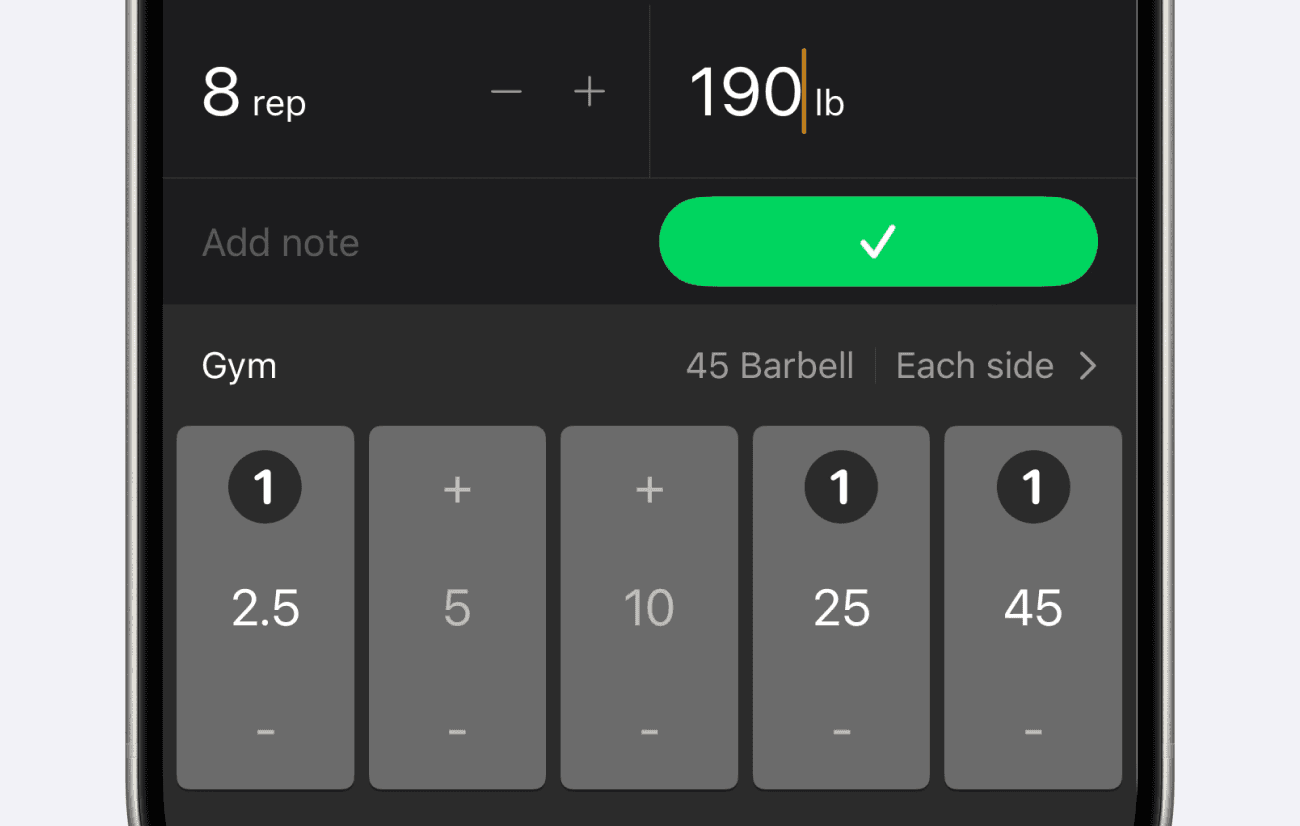
This Setgraph product update explains the set-input screen shown in the iOS screenshot below. The layout brings reps, weight and a note into one recording flow. It is a guide to entering training data, not a claim that a particular number of sets or reps is ideal for everyone.
What Changed in the Entry Screen
Larger Rep and Weight Text Views
The screenshot shows large rep and weight values with adjacent adjustment controls. Check both the number and its unit before recording, especially if your equipment or load convention has changed.
Read the rep count and load together before saving.
Use the adjustment controls or direct entry to match the completed set.
Keep dumbbell, machine and barbell load conventions consistent within each exercise history.
Always-Visible Note Section
The Add note field is visible in the set-input example. Use it for context you will want later, such as a different bench angle, shorter rest or a technique cue. A note complements the numbers; it does not calculate an optimal program.
Add a note while entering the completed set.
Use a short, specific description such as “same load, longer rest” or “new machine; compare separately.”
Keep the note factual. If pain occurs, stop and assess rather than using it as a target for next time.
Worked Example: Three Actual Sets
Suppose your reviewed program calls for 3 sets of 8–10 reps on a bench press. An illustrative session is 60 kg for 10, 9 and 8 reps. Record each set separately with its actual result. That is 27 total reps and 1,620 kg of volume-load; it is not 3 × 10 just because that was the top of the planned range.
Open the exercise and enter the first completed set: 60 kg and 10 reps.
Record the second and third completed sets as 9 and 8 reps at the same load.
Add a useful note if setup, rest or technique differed.
At the next session, open the same exercise and review the record before choosing your target. Follow your program’s progression rule rather than increasing the load automatically.
These figures demonstrate recording and arithmetic, not a recommended load or an expected result. More volume-load does not directly measure muscle growth.
Choose the Entry Shortcut That Fits
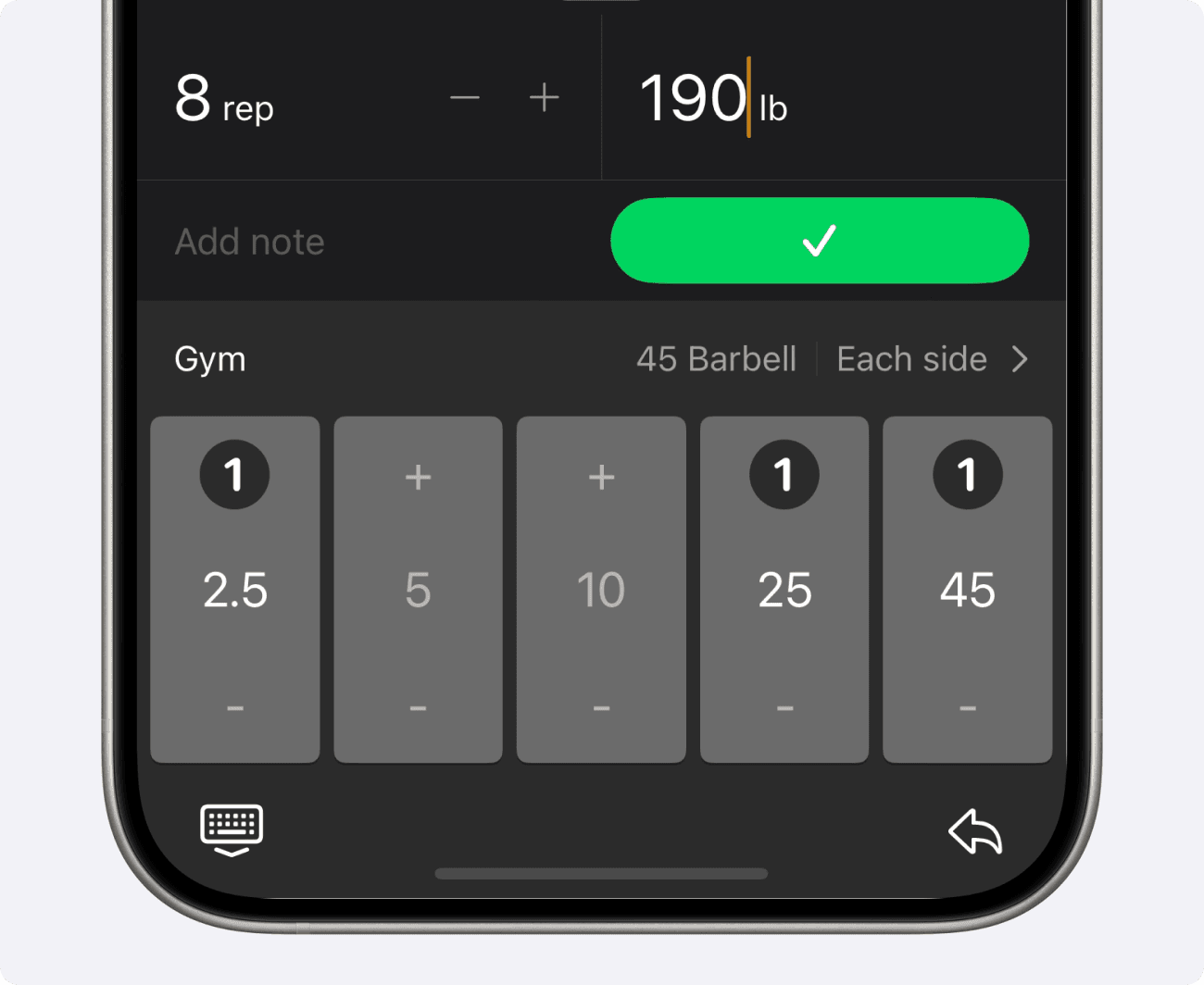
On iOS, you can swipe right on an exercise to open recording. If another completed set matches a previous set, the repeat shortcut can reuse it. Check pre-filled values before recording, and edit any value that differs from what you did.
Use the Screenshot as Version Context
The image shows an earlier set-input layout. Current versions also adapt the visible fields to an exercise’s properties, including duration for timed movements. See the duration guide when reps and weight are not the right measurements.
